Get one sentence onto the screen. This first step in Python, one step at a time takes you from an installed interpreter, the program that runs Python code, to a saved script you can run again.
Get Python working
On Windows, install the Python install manager from python.org or the Microsoft Store. Open PowerShell afterwards.[1] On macOS, download the Python installer package from python.org, follow its installer, then run Install Certificates.command in the installed Python application folder.[2] On Linux, Python is often installed already. Otherwise, install the python3 package through your distribution’s package manager.[3]
Open a terminal, the application where you type commands. On macOS or Linux, check the interpreter with:
python3 --version
On Windows, use py --version instead.[1] A Python 3 version number is your checkpoint. The local examples below ran with Python 3.14.9 on Linux. The Windows and macOS installation steps follow official documentation and were not tested on those systems here.
Save one instruction
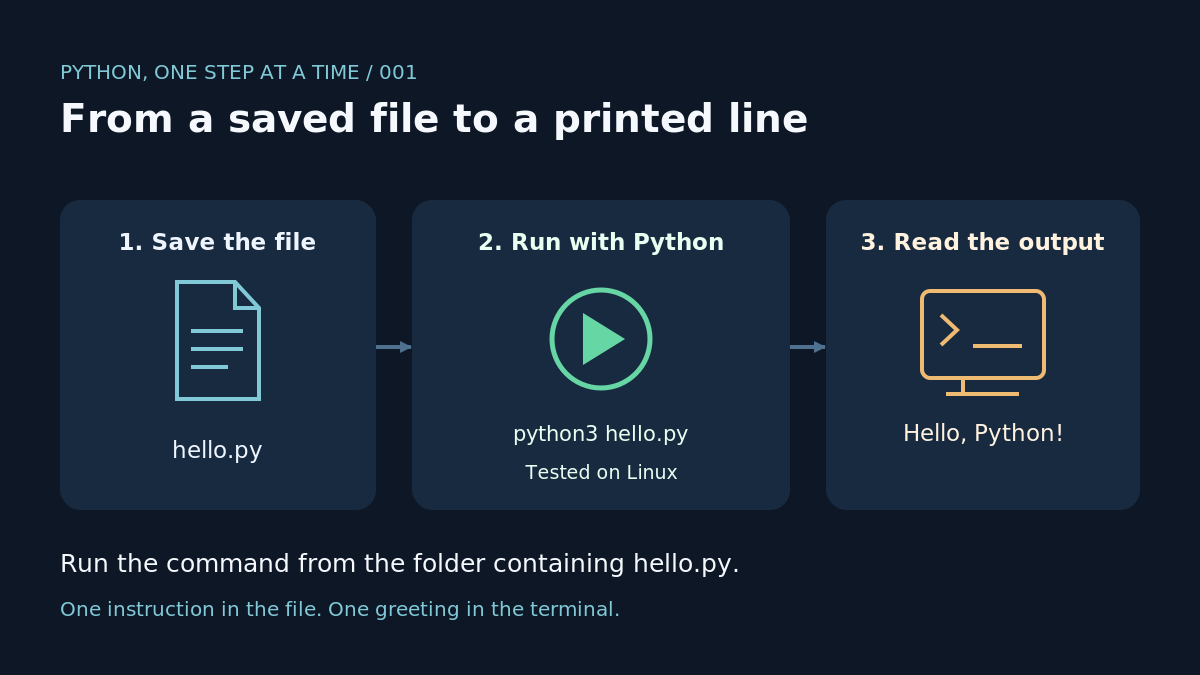
Create a folder called python-course. Open a plain-text editor and save the following as hello.py inside that folder. Check that your editor has kept the .py ending, rather than adding .txt.
print("Hello, Python!")
In this example, print writes the text between the quotation marks to the terminal. Keep the straight quotes and both parentheses exactly as shown.
Open a terminal in that folder, using your file manager’s terminal option if available. Run:
python3 hello.py
On Windows, use py hello.py instead.[1] Passing a filename tells the interpreter to execute that script.[4]
Hello, Python!
If the file cannot be opened
A common first mistake is running the command from another folder. Check the terminal’s current folder and the saved filename, then try again. If the Python command itself is unavailable, return to the installation guide’s troubleshooting section.[1][2][3]
Your turn
Change the greeting to Hello, Read0nly!, save the file and rerun the same command. Expect that new sentence on its own line.
Next: using the interactive interpreter and understanding how it differs from running a .py file.

