You want to try a greeting, then keep it so you can run it tomorrow. Python can read instructions interactively or execute them from a saved file.[1]
Try the prompt
Start in your operating system's terminal. The commands here were tested with Python 3.14.9 on Linux, where the executable is called python3. Use the launcher you already checked when installing Python.
python3 -q
The -q option hides the welcome banner. At >>>, type each instruction after the prompt and press Enter. Python usually uses >>> to ask for its next instruction.[1]
>>> print("Hello, Python!")Hello, Python!>>> print("Saved in a file.")Saved in a file.>>> exit()
This capture includes prompts, typed instructions and responses. Type only the instructions. The familiar print(...) sends the greeting to the terminal. Here, exit() leaves Python and returns you to your operating system's terminal.
The capture uses Python's basic interactive shell. Newer shells can offer colour and different editing controls; Python documents how to select the basic shell.[2]
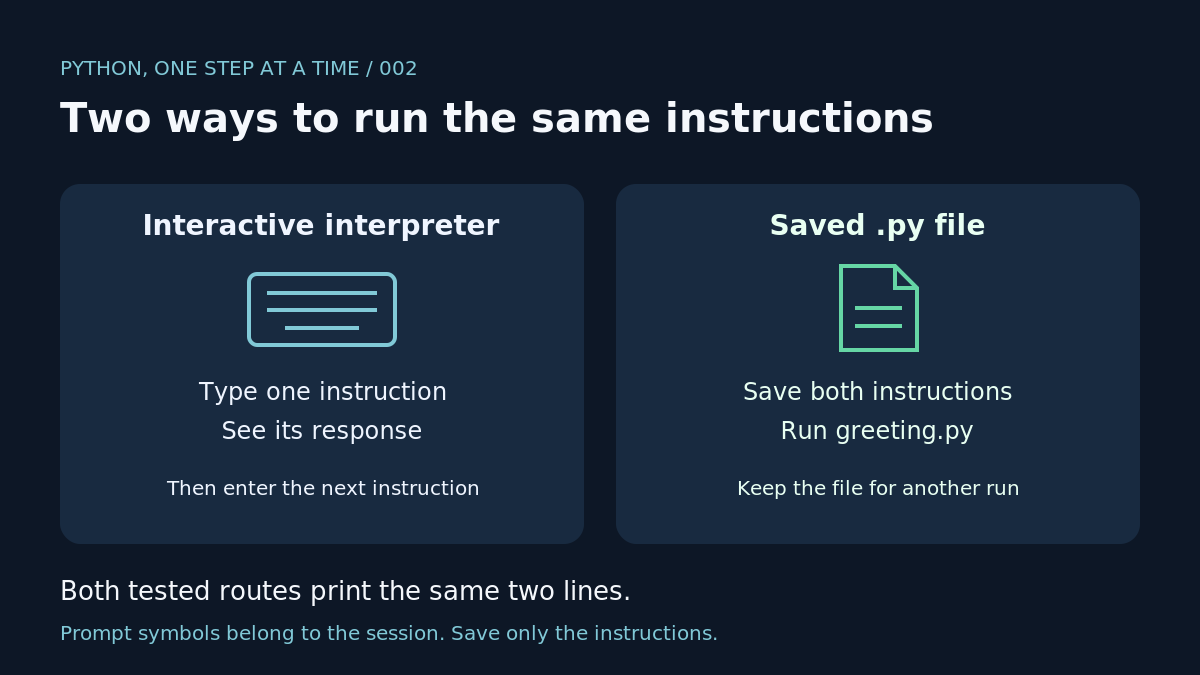
Keep the instructions
Open a plain-text editor and save these two lines as greeting.py. Keep the quotation marks and brackets exactly as shown. Check that your editor has kept the .py ending.
print("Hello, Python!")print("Saved in a file.")
Back in the operating system's terminal, run this command from the folder containing the file:
python3 greeting.py
Hello, Python!Saved in a file.
Both lines ran without waiting for another Python prompt. Run the same command again: our second run produced the same output. Editing the file changes the instructions available to the next run; save your edits before running it.
A common mistake
Copying >>> into greeting.py caused SyntaxError in our test. Remove the prompt symbols and keep the Python instructions. Error details come later in this module.
Your turn
Change the second message to Ready for the next step. Save the file, run it again and check that the first line stays unchanged. Next: values and elementary types, starting with the pieces of data Python works with.

